

Reading time: 7 minutes
A slow Shopify store does not automatically need a new theme. The decisive factor is whether the base theme, installed apps, third-party tags, or individual customizations are impairing actual user metrics.
Shopify's current theme performance data establishes a baseline for comparison. This checklist shows how to connect the benchmark with your own Core Web Vitals and derive solid measures from it.
Quick & Compact
✓ First, check your store's real user data instead of relying solely on individual Lighthouse tests.
✓ Only compare current theme versions and similar page types.
✓ Clearly attribute every issue to LCP, INP, or CLS.
✓ Test the theme, apps, tags, and custom code separately if possible.
✓ Evaluate changes only after sufficient traffic has accumulated and without concurrent interventions.
What the Current Theme Benchmark Indicates
Shopify publishes aggregated Core Web Vitals data for popular themes. The dataset, updated on August 4, 2026, considers active stores with their own domain, at least 100 recorded visits per day, and one of the three latest versions of the respective base theme.
It reports the percentage of included stores where at least 75 percent of user experiences achieve a good score. This makes the benchmark more meaningful than a single lab test, though it represents neither your exact configuration nor your specific target audience.
MetricMedian of ThemesRangeAssessed AreaLCP94.5 %39.0–100.0 %Loading SpeedCLS93.7 %41.3–99.1 %Layout StabilityINP97.0 %59.1–100.0 %ResponsivenessAll Core Web Vitals85.7 %34.0–98.3 %Overall Fulfillment
The wide range shows that the base theme can make a relevant difference. Shopify also points out that theme version, customizations, apps, and third-party code significantly alter the performance of an individual store.
Practical Check
If your store is significantly below the benchmark of its theme, an immediate theme change is usually not the first step. First, investigate what distinguishes your storefront from the tested base theme.
Checklist: Choosing the Correct Comparison Baseline
1. Clearly Record Theme and Version
Note the name and the active version of your theme. Then check if a newer version is available and which custom code modifications might complicate a direct update.
The Shopify benchmark only includes the three latest versions of a base theme. An older or heavily customized status is therefore not directly comparable to the published value.
2. Prioritize Your Own Real-User Data
In the Shopify admin area, open the Web Performance reports under Analytics and Reports or the metrics overview in the Theme section. Look at LCP, INP, and CLS separately by time period, device, page URL, and page type.
The reports are based on real visits and show the 75th percentile. According to Shopify, data can be delayed by up to 36 hours and is available for the past 90 days.
3. Do Not Optimize the Store Average
An overall value can mix good and bad templates. Segment at least the homepage, category pages, and product pages, and prioritize page types with high traffic or high economic importance.
Pay special attention to differences between mobile devices and desktop. A good desktop value does not compensate for a problematic mobile product experience.
Checklist: Correctly Attributing the Bottleneck
Each Core Web Vital points to a different class of problem. Start with the metric that performs moderately or poorly in your real user data, instead of trying to implement all technical recommendations at the same time.
SignalTypical CandidatesFirst Controlled TestLCP over 2.5 secondsHero image, product image, slider, blocking codeIdentify the LCP element and investigate its loading pathINP over 200 millisecondsApp scripts, filters, variant logic, tracking tagsReproduce the interaction and check for long JavaScript tasksCLS over 0.1Images without reserved space, banners, widgets, lazy-loaded contentIdentify the shifting element and reserve space in advance
According to Shopify, these thresholds mark the good range. For the evaluation, what matters is not whether a single test run reaches the limit, but whether at least 75 percent of the measured user experiences are good.
Important
A high Lighthouse score does not prove a good real user experience. Lab tests help with root cause analysis; for prioritization and success monitoring, Shopify RUM data should remain key.
Checklist: Separating Theme, Apps, and Code
4. Test a Clean Theme Copy
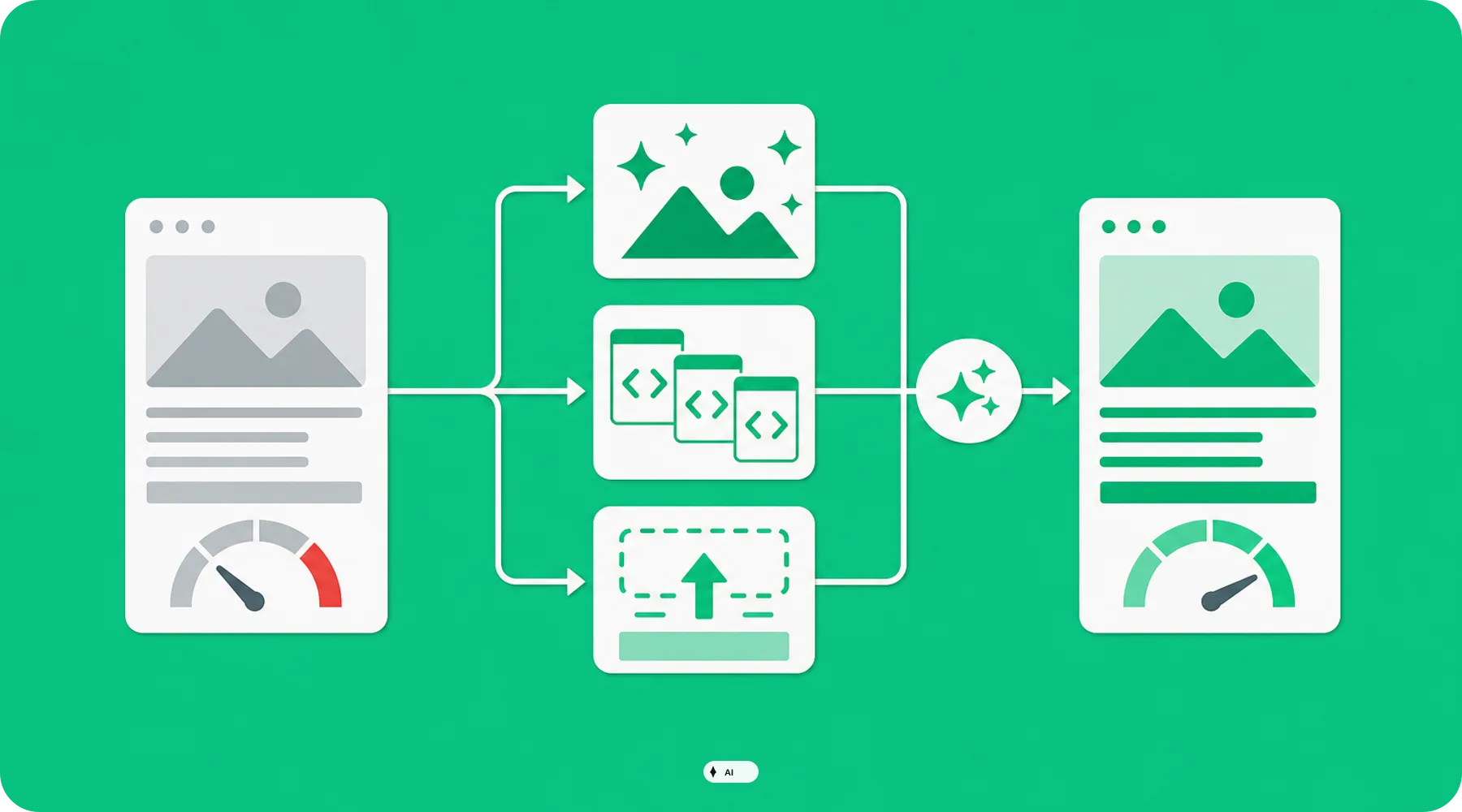
Create an unpublished copy of the current theme version. In this copy, test removing unnecessary animations, overloaded sections, carousels, and autoplaying videos without immediately modifying the live store.
Compare typical product and category pages in a controlled lab analysis. If even the reduced copy shows clear advantages, the bottleneck is likely in the storefront configuration or custom enhancements.
5. Prioritize Apps by Visible Value
Identify all apps that load content or scripts in the storefront. For each app, check which templates it needs to be active on and whether its function is measurably used.
A uninstalled app does not necessarily leave behind zero theme code. Therefore, check app blocks, app embeds, snippets, and manually inserted scripts before concluding the test.
6. Audit Third-Party Tags Separately
Analytics, advertising, personalization, and consent scripts can heavily impact interactivity. Document the trigger, ownership, purpose, and last usage of each tag in the Tag Manager.
Do not remove business-critical measurement points without alignment. First, reduce duplicate, outdated, or unnecessarily triggered tags across too many pages, and then check tracking and performance.
7. Check Customizations Against Native Features
Older theme customizations often replicate features that current theme versions now offer natively. Compare custom variant logic, product badges, search, filters, and media functions with the current native feature set.
If custom code can be replaced by a well-maintained theme feature, maintenance and update risks usually decrease as well. Nonetheless, the switch should be performed in a theme copy with full functional and tracking testing.
Checklist: Measuring Optimizations Reliably
Secure the baseline: Document the metric, device type, page type, time period, and traffic before making the change.
Address only one problem class: Group related interventions together, but do not mix app, theme, and tracking projects.
Perform a lab test: Verify that the suspected technical cause has actually disappeared.
Publish in a controlled manner: Avoid parallel campaign, theme, or app changes if possible.
Wait for RUM data: Factor in the data delay and compare time periods with sufficiently similar traffic.
Shopify's reports mark theme updates, app installations, and new code over time. Use these events to attribute regressions not just chronologically, but also technically to a plausible cause.
For stores with low traffic, daily values can fluctuate heavily. In this case, Shopify recommends grouping data weekly or monthly before drawing far-reaching decisions from individual spikes.
What Store Owners Should Check Now
✓ Is your store running on one of the current versions of the theme in use?
✓ Which page type misses which Core Web Vital on mobile devices?
✓ Which app installation, customization, or tag change coincides with the performance drop?
✓ Is the affected element actually necessary for revenue, usability, or measurement?
✓ Was the optimization validated technically first, and then with real user data?
Thinkideas View
Use the Shopify Theme Benchmark as an early warning and comparison system, not as a ranking list for a premature relaunch. The best decision comes from three levels: a current theme base, segmented RUM data, and a controlled test of the concrete cause.
Conclusion
Shopify theme performance can be evaluated much more precisely today than with a generic speed score. The current benchmark shows the potential of a theme, while your own real user data determines the actual need for action.
Start with the weakest metric on the most important mobile page type. Then separate theme, apps, tags, and custom code before deciding on a major theme change.


